How to merge PDFs without uploading your files
When you need one document from several files, you can combine the pages in your browser without sending the PDFs to a processing server.
By PDF Plus · Updated 22 October 2026
Open the private PDF merger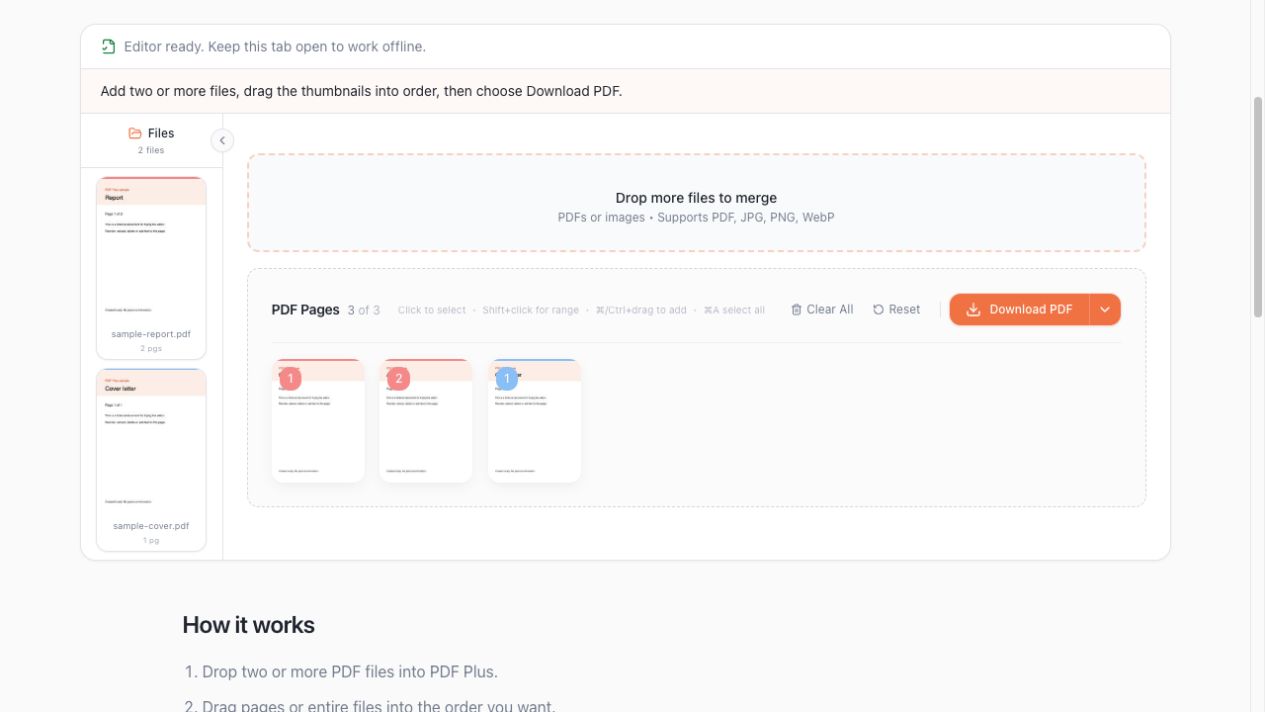
Start with sample documents
Open the merge tool and choose Try sample files. PDF Plus creates a fictional two-page report and a one-page cover letter on your device. No personal document is needed to learn the workflow.
For your own documents, choose PDFs to merge and select two or more files. The editor reads them locally and shows a thumbnail for every page.
Check the order before you merge
Pages initially follow the order of the files you add. Drag the cover letter thumbnail to the front if it belongs before the report. Double-click a page to preview its contents at a larger size.
For a larger collection, use the Files panel to reorder whole documents. You can also drag individual pages between documents or remove a duplicate page. Reordering does not change page numbers already printed on the pages.
Download and review the combined PDF
Choose Download PDF. PDF Plus creates a new document and starts a download in your browser. Your original files are not overwritten.
Open the downloaded file in a PDF reader. Check the page count, order and any annotations before sharing it. Keep the original files if you may need to make a different version later.
Verify the offline workflow
With the editor loaded and the sample documents visible, disconnect your network and download the combined PDF. Keep this tab open while offline; reopening the website or loading a different tool may require a connection.
This check demonstrates that the loaded merge workflow can run locally. Optional website analytics is a separate choice and does not receive document contents or filenames.
If a file will not open
A password-protected PDF may need to be unlocked first in a trusted tool. A very large scan can also exceed your browser’s available memory; try merging fewer documents at a time.
Merging combines pages. It does not compress scans, edit existing text, or provide OCR. Choose another tool if one of those is your actual task.